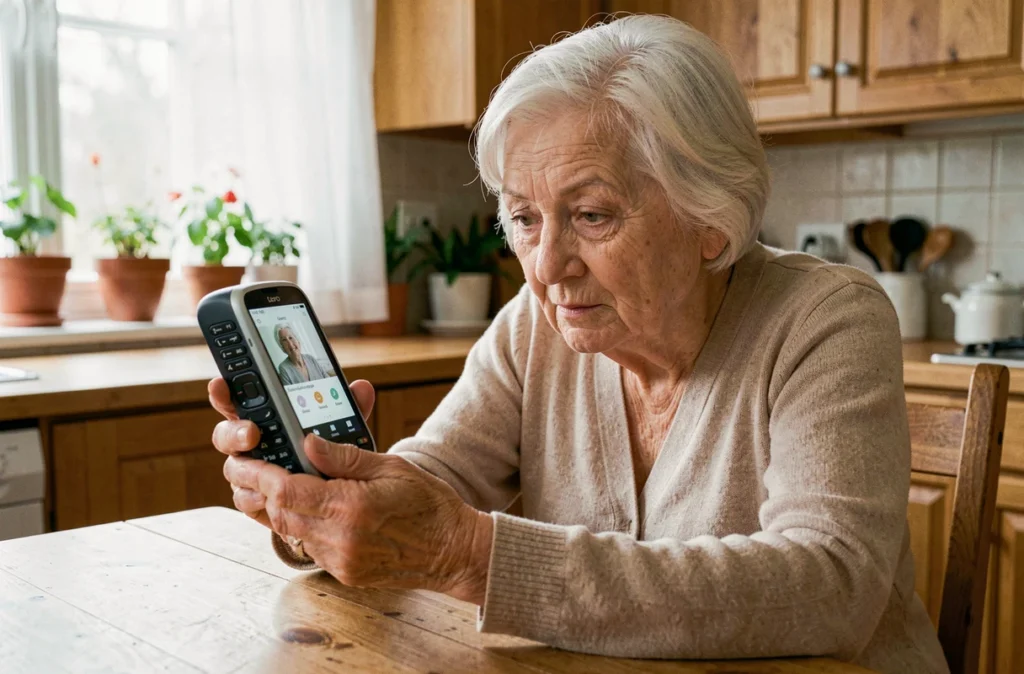
Send a quick message via SMS to a loved one, check that it has been received, correct a mistake before pressing “Send”: on the Doro Leva L30, each step involves physical buttons and a simple screen. This flip phone, designed to be readable and straightforward, uses a classic alphanumeric keypad. Knowing how to navigate its menus makes all the difference in gaining confidence in daily use.
T9 Keyboard and Contextual Keys of the Doro Leva L30
Before writing anything, you need to understand how the L30’s keyboard works. Each numeric key (from 2 to 9) groups several letters. To enter the desired letter, you press the same key multiple times until it appears on the screen.
For example, the key 2 has the letters A, B, and C. One press displays A, two presses display B, three presses display C. To type “Bonjour,” you need to press multiple keys in succession, one letter at a time.
Did you notice the two buttons located just below the screen? These are the contextual keys. Their function changes depending on the menu displayed. The word that appears at the bottom left or right of the screen indicates what each key does at that specific moment. “Options,” “Back,” “Send”: it all depends on the screen you are on.
To easily return to the home screen at any time, press the red key (hang up). This is the starting point for all the operations described here. If you want to delve deeper into the procedure for writing an SMS on a Doro Leva L30, several resources also detail additional settings.
Accessing the Messages Menu and Writing an SMS Step by Step
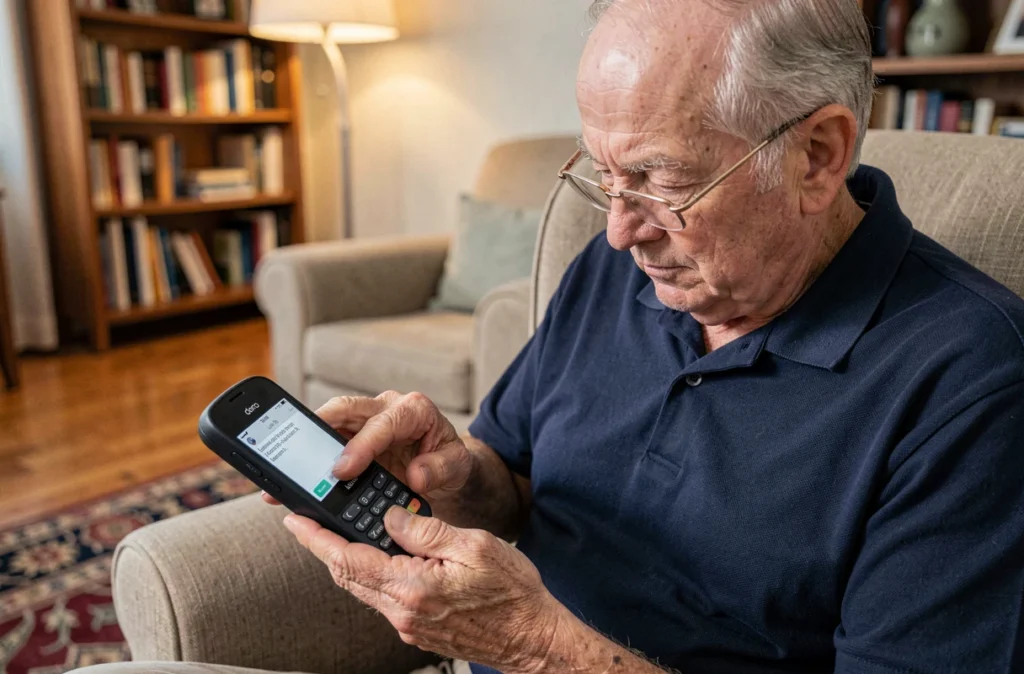
From the home screen, press the left contextual key to open the main menu. Navigate with the up and down arrows until you find the “Messages” entry, then confirm with the central key or the contextual key indicating “Select.”
Creating a New Message
Once in the Messages menu, select “Create a message” (or “New message” depending on the software version). The device will then prompt you to enter the recipient’s number.
You have two options:
- Directly type the phone number using the numeric keypad, then confirm.
- Press the “Contacts” key (often the right contextual key or the button dedicated to the directory) to choose a name from your saved contacts list.
- Confirm the recipient by pressing “OK” or “Select” according to the indication displayed on the screen.
The phone then opens the text input area. This is where the alphanumeric keyboard comes into play.
Typing the Text Letter by Letter
Position yourself in the writing field. Each numeric key corresponds to a group of letters. Press the same key multiple times to scroll through the letters until you reach the one you want. Wait a brief moment (or press the right arrow) before moving to the next letter if it is on the same key.
To insert a space, use the 0 key. For common punctuation marks (period, comma, question mark), press the 1 key multiple times. The star key (*) usually allows you to toggle between uppercase and lowercase letters.
Once your text is finished, press the “Send” contextual key or the button indicated on the screen. The SMS is sent immediately to the chosen number.
Special Characters and Message Length on the Doro Leva L30
French accents (é, è, ê, à, ù) can be accessed by pressing the corresponding key multiple times. For example, the 3 key gives access to D, E, F, but also to É and È by continuing to press.
Accented characters can alter the actual length of the SMS. The standard SMS norm (GSM encoding) allows a certain number of characters per message. When you use letters outside the basic alphabet, the phone sometimes switches to a different encoding, which reduces the number of characters available per segment.
In practice, if your message contains many accents or special symbols, it may be split into several SMS upon sending. You may not necessarily see the difference on your screen, but your operator will count two messages instead of one. For short daily messages, this phenomenon remains rare.
Avoiding Common Mistakes When Typing on a Keypad
The main difficulty with a physical keyboard is speed. Typing too quickly causes double letters or unintended characters. Take the time to wait for each letter to display before moving on to the next one.
Here are some useful reflexes to limit mistakes:
- Proofread your message before pressing Send: scroll up through the text with the up arrow to check each word.
- Use the “Delete” key (often the right contextual key in the input screen) to remove the last character in case of an error.
- If you are unsure about the path in the menus, press the red key to return to the home screen and start again from the Messages menu.
Another trap concerns the assistance key located on the back of the phone. This key does not send a regular SMS: it triggers a call and an alert message to the emergency contacts you have configured. Do not confuse it with the SMS function in the Messages menu. Assistance contacts are set up in a separate menu and are not linked to the usual directory.
Checking Receipt and Managing the Message Box
After sending, the Doro Leva L30 usually displays a confirmation on the screen. To find your sent messages, return to the Messages menu and select “Sent messages” or “Outbox.”
When you receive an SMS, a notification appears on the external screen of the flip phone (if the phone is closed) or directly on the main screen. Open the flip, access the Messages menu, then select “Inbox” to read the received message.
Deleting old messages frees up memory space. Select a message, press “Options,” then choose “Delete.” Regularly emptying the inbox prevents the phone from rejecting new SMS when the memory is full.
The Doro Leva L30 remains a phone designed for simplicity. Each function goes through a clearly named menu, and each action is confirmed on the screen. With a few sends, navigating the menus becomes second nature, and writing an SMS takes only a few seconds.